Lighting secrets for ultra-realistic face swaps
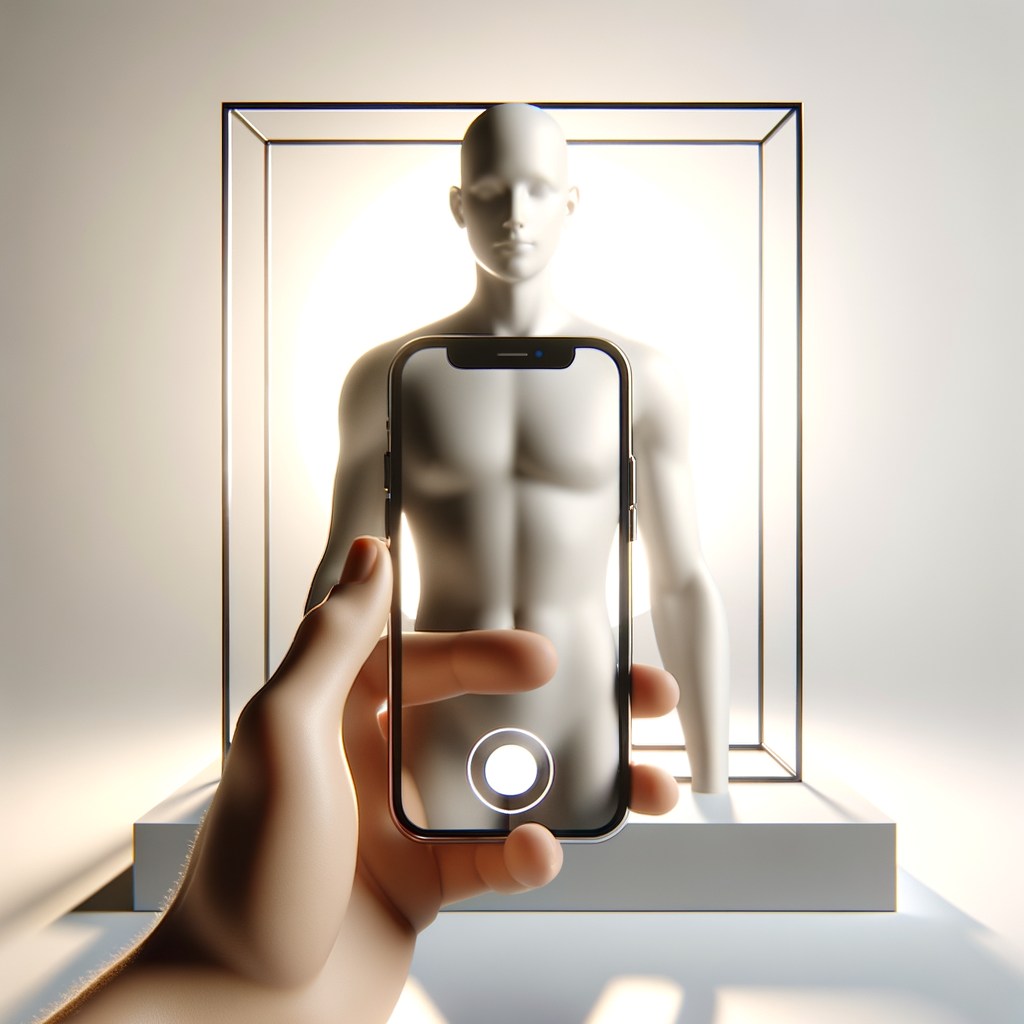
Realistic swaps start with matching light direction and intensity. Pick source photos
with similar lighting angles or adjust exposure before swapping. GIF Face Swap’s tone-matching
layer helps blend highlights and shadows, but clean source lighting makes every result sharper.
Quick tip: avoid harsh backlighting and use soft, even light for the best results.
Perfect selfie swaps in under two minutes
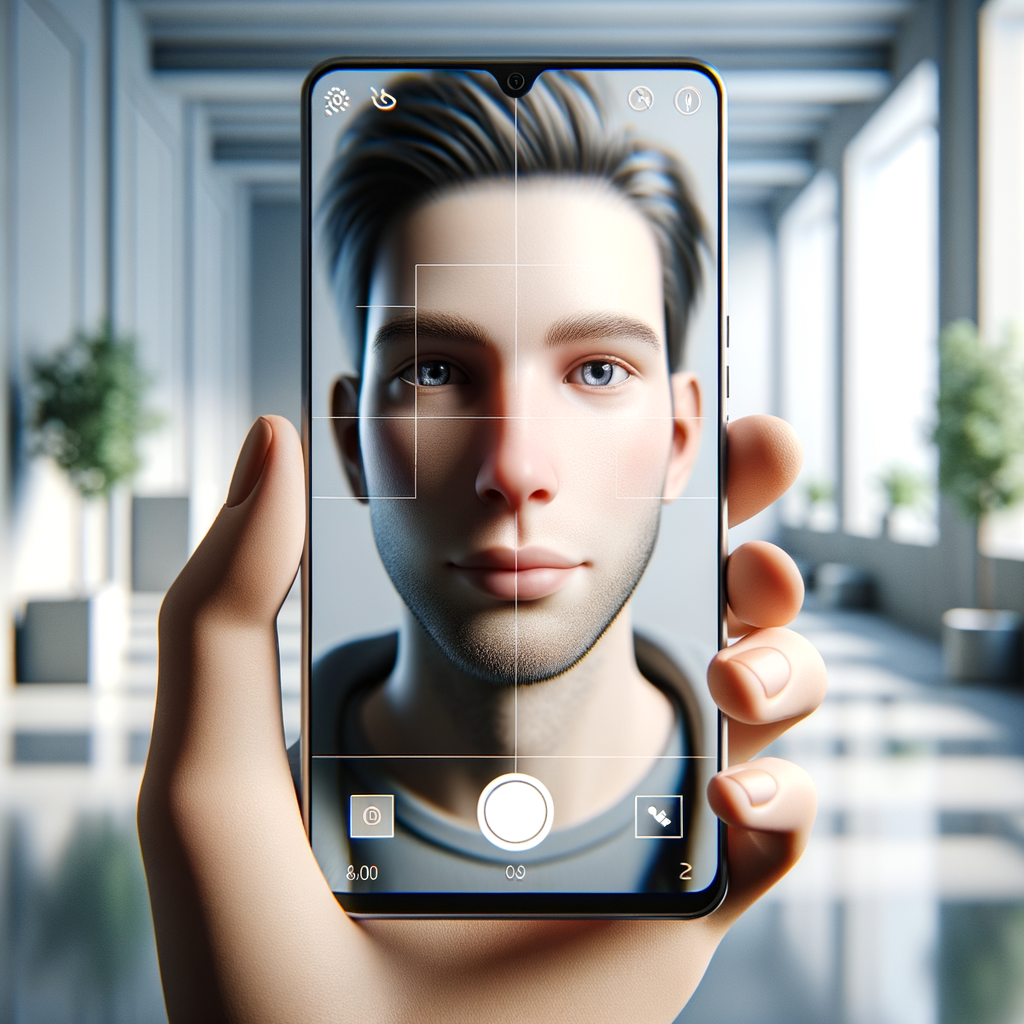
Start with a high-resolution selfie, select a target template, and let GIF Face Swap auto-align
the face. Use the edge smoothing tool to clean up hairlines, then export using the social preset.
Quick tip: zoom slightly to keep facial proportions consistent.
From concept to share: building a face swap story
Great edits have a narrative. Combine themed templates with short clips, add matching colors,
and keep transitions consistent. GIF Face Swap lets you save a style preset so the look stays cohesive.
Multi-face swaps: how to keep everyone aligned
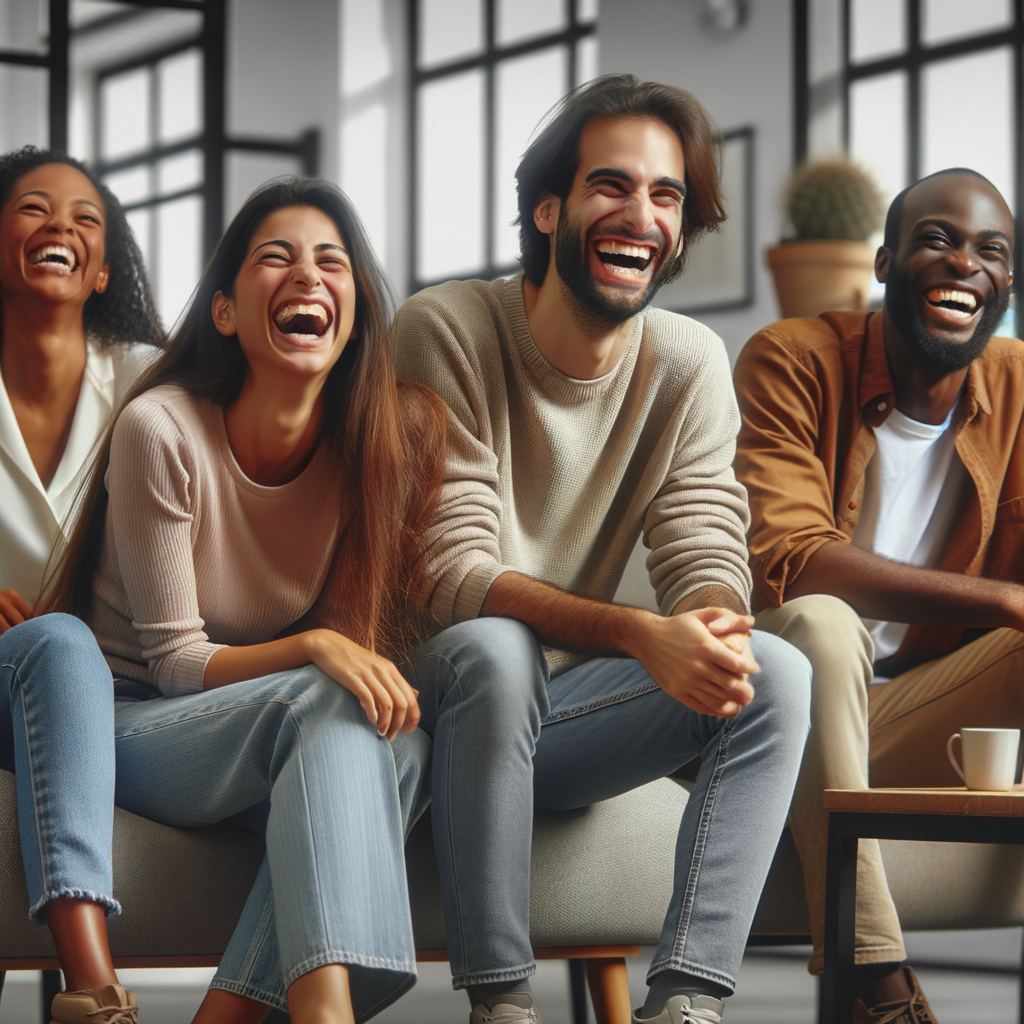
Group swaps work best when faces are evenly lit and visible. Use the multi-layer tool to
isolate each subject and adjust alignment manually. This prevents drifting and keeps each swap
consistent across the scene.
Minimal setup, maximum impact: quick video swaps
Short, stable clips make the best face swap results. Trim your video to the strongest
5–10 seconds, apply the swap, and export with stabilization enabled for a polished look.

 GIF Face Swap